
How to activate a game
Step-by-step guides to activate your games depending on the platform.
Frequently asked questions
1- Go to http://store.steampowered.com/about/
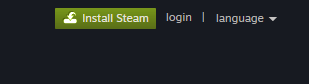
2- Click on "Install Steam":
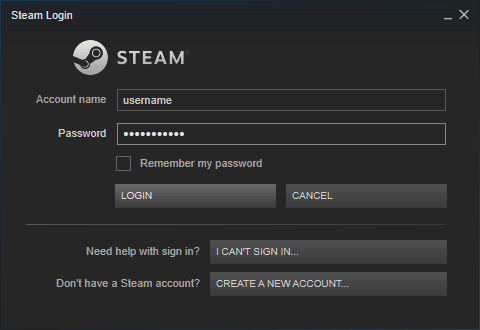
3- Once the software is installed and launched, sign in with your login/password (create one otherwise).
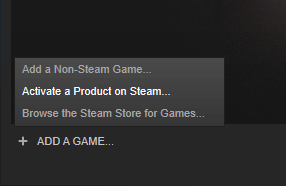
4. Once signed in, at the bottom left click '+ Add a Game' (Otherwise in the main menu, 'Games' tab)
5. Select "Activate a Product on Steam..."
6. A screen asks you to accept the license, accept it.
7. A window prompts you to enter your code purchased on Amazing.tn
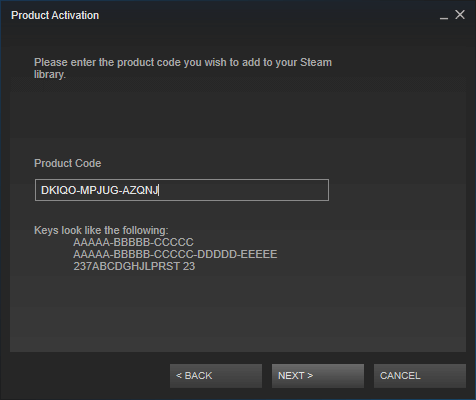
8- After a few minutes Steam authenticates your code.
9- The game is now visible in your list.
10- Click on it for the download to begin.
If you would like more specific help, or if you have any questions, feel free to contact
us.
2- Click on "Install Steam":
3- Once the software is installed and launched, sign in with your login/password (create one otherwise).
4. Once signed in, at the bottom left click '+ Add a Game' (Otherwise in the main menu, 'Games' tab)
5. Select "Activate a Product on Steam..."
6. A screen asks you to accept the license, accept it.
7. A window prompts you to enter your code purchased on Amazing.tn
8- After a few minutes Steam authenticates your code.
9- The game is now visible in your list.
10- Click on it for the download to begin.
If you would like more specific help, or if you have any questions, feel free to contact
us.
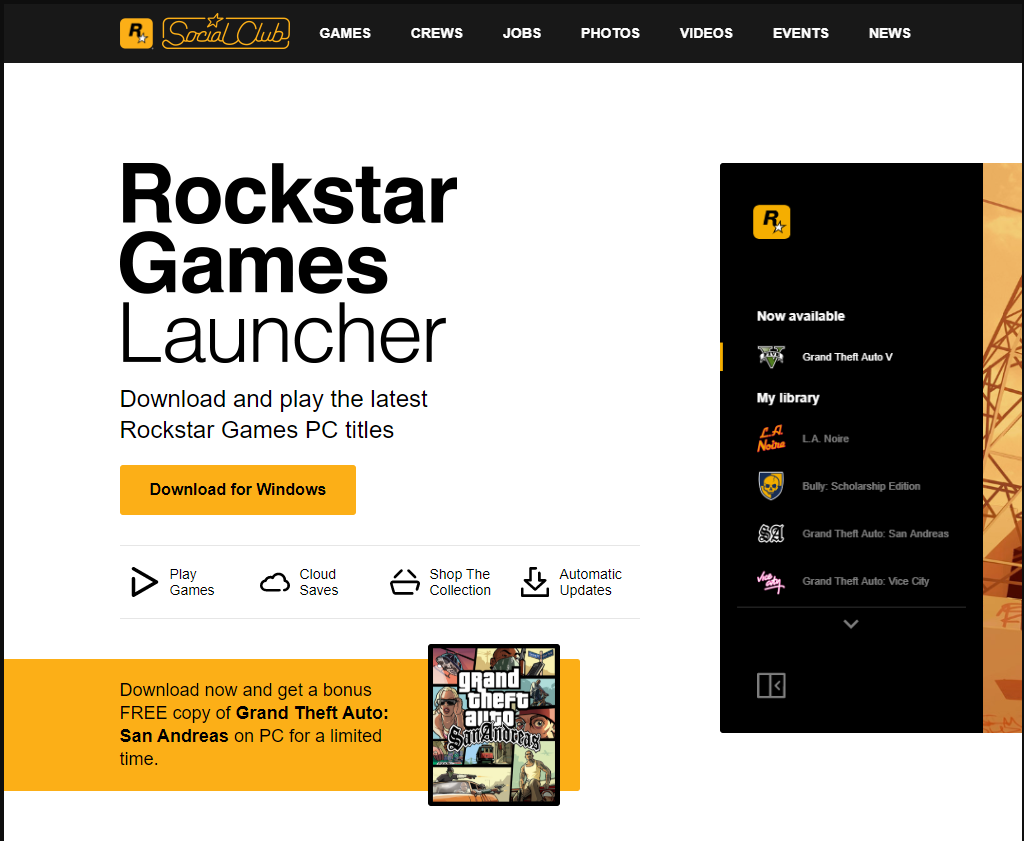
1- Go to https://socialclub.rockstargames.com/rockstar-games-launcher
2- Download the Rockstar launcher and install it.
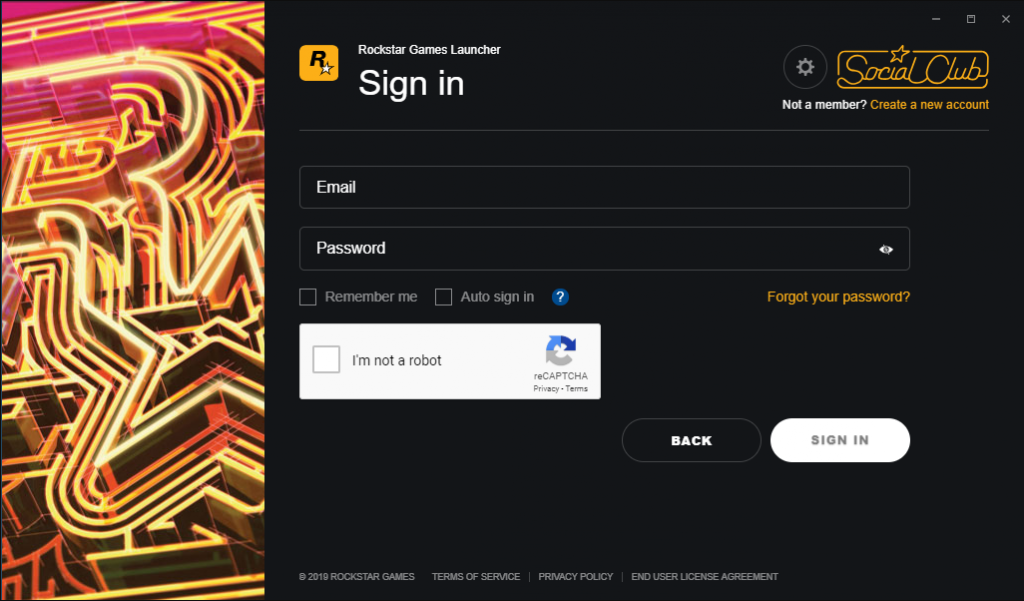
3- Once the software is installed and launched, sign in with your login/password (create one otherwise).
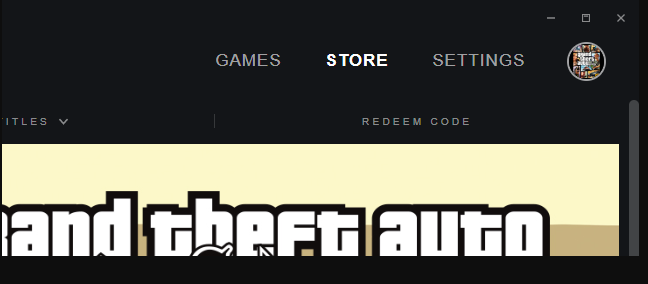
4- In the top right, click on the "Store" tab then "Activate a code".
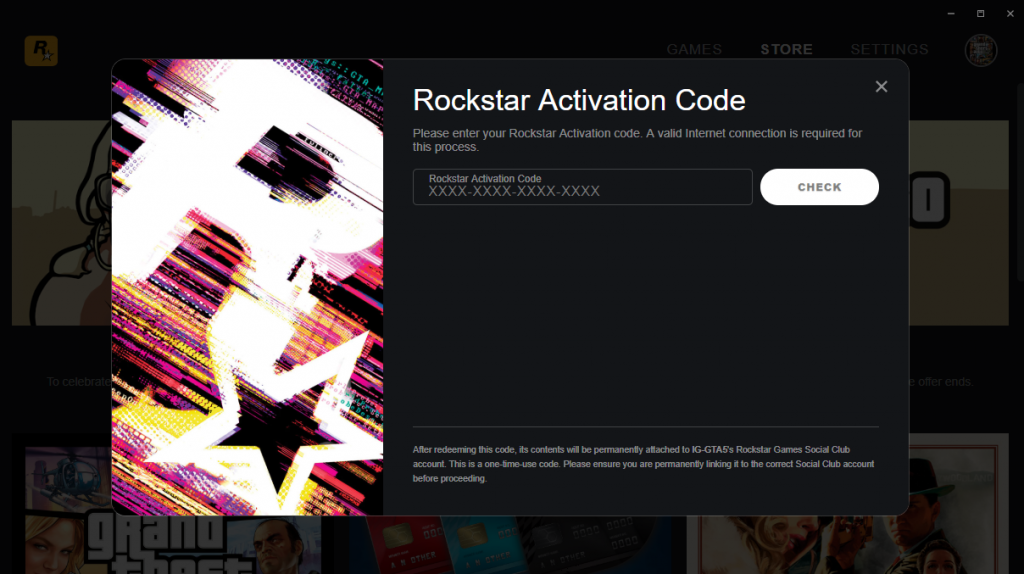
5- Confirm the code you received:
6- Your game is activated and the download can begin.
2- Download the Rockstar launcher and install it.
3- Once the software is installed and launched, sign in with your login/password (create one otherwise).
4- In the top right, click on the "Store" tab then "Activate a code".
5- Confirm the code you received:
6- Your game is activated and the download can begin.
1. To activate your game, go to http://www.gog.com/
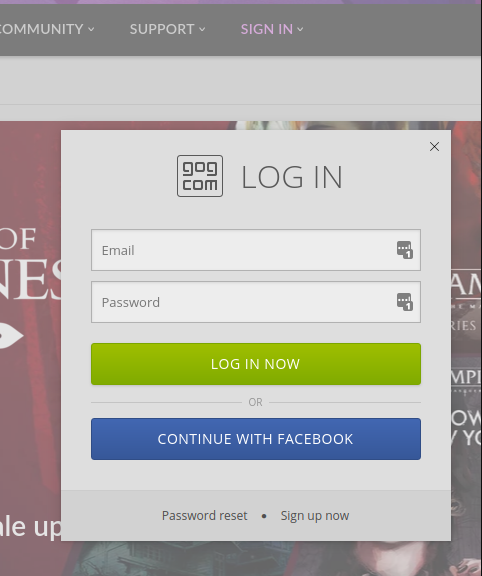
2. If you do not have an account, create one, otherwise sign in:
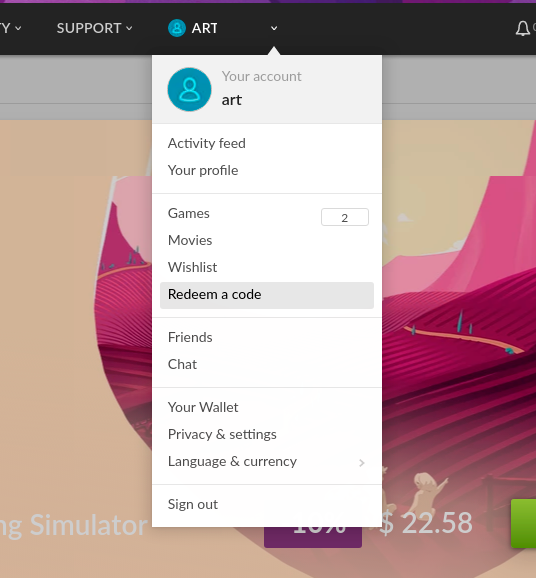
3. Once signed in, click on the "Account" tab:
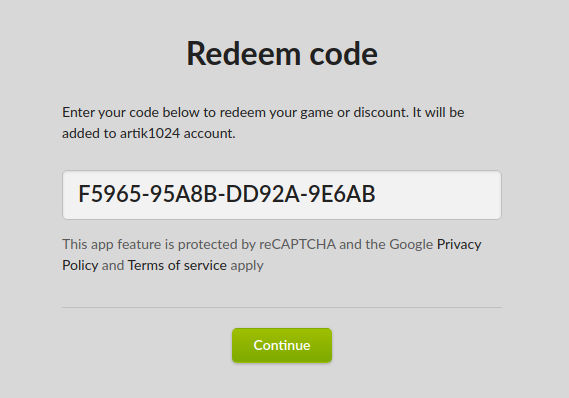
4. Confirm the code you received on Amazing.tn to activate and start downloading the game:
2. If you do not have an account, create one, otherwise sign in:
3. Once signed in, click on the "Account" tab:
4. Confirm the code you received on Amazing.tn to activate and start downloading the game:
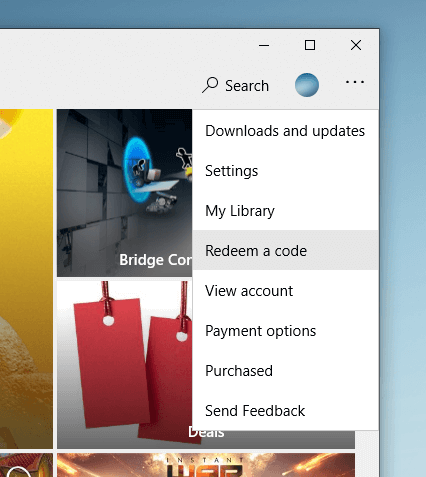
1- On your PC, launch the "Windows Store" app and sign in with your Microsoft account, then at the top right on the three little dots icon select: "redeem a code".
2- Enter the code provided by Amazing.tn in your "My purchases" section, then confirm.
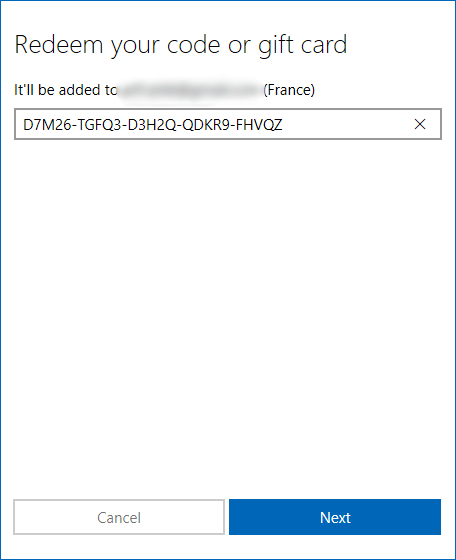
3- Once the game is activated, Microsoft tells us the game is validated. You can close the window.
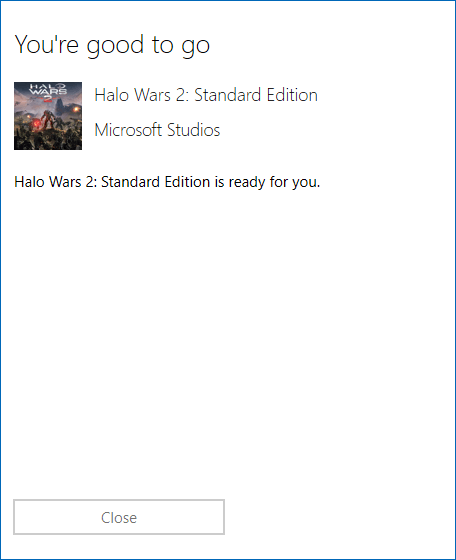
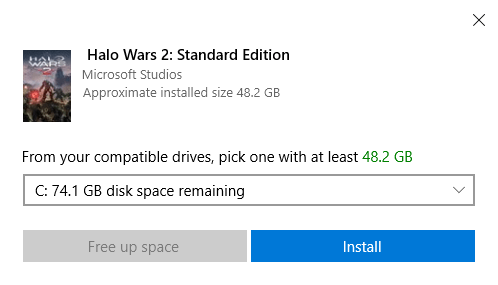
4- A new window then opens inviting us to install the game. Confirm to start the installation.
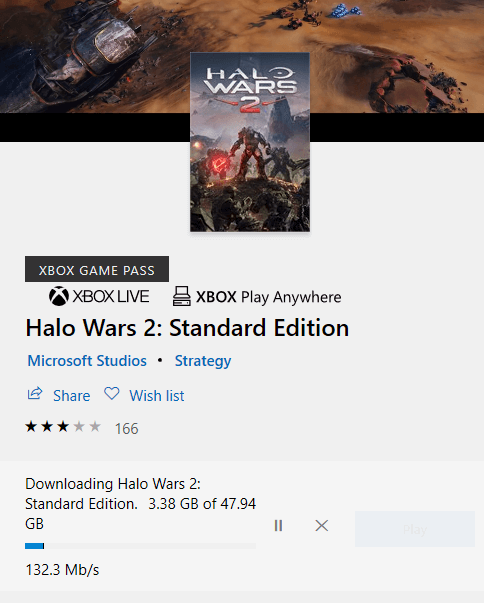
5- Once the game is installed, the "Play" button will be enabled, and the game available in the "My library" tab.
If you would like more specific help, or if you have any questions, please do not hesitate to contact us.
2- Enter the code provided by Amazing.tn in your "My purchases" section, then confirm.
3- Once the game is activated, Microsoft tells us the game is validated. You can close the window.
4- A new window then opens inviting us to install the game. Confirm to start the installation.
5- Once the game is installed, the "Play" button will be enabled, and the game available in the "My library" tab.
If you would like more specific help, or if you have any questions, please do not hesitate to contact us.
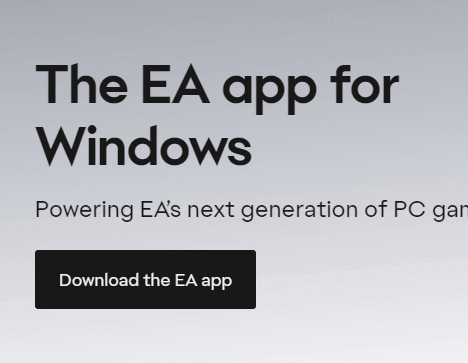
1- Go to https://www.ea.com/ea-app
2- Click on "Download EA App":
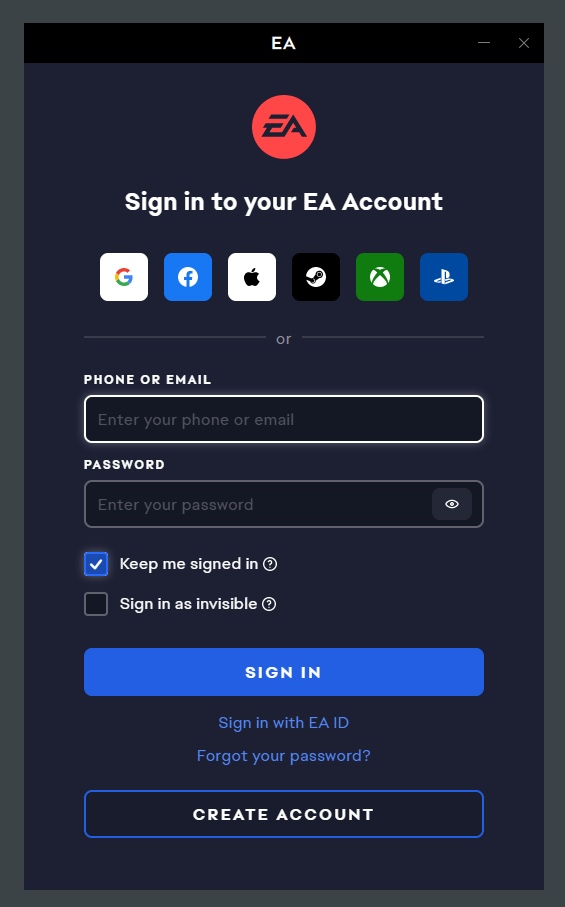
3- Once the software is installed and launched, sign in with your login/password (create one otherwise).
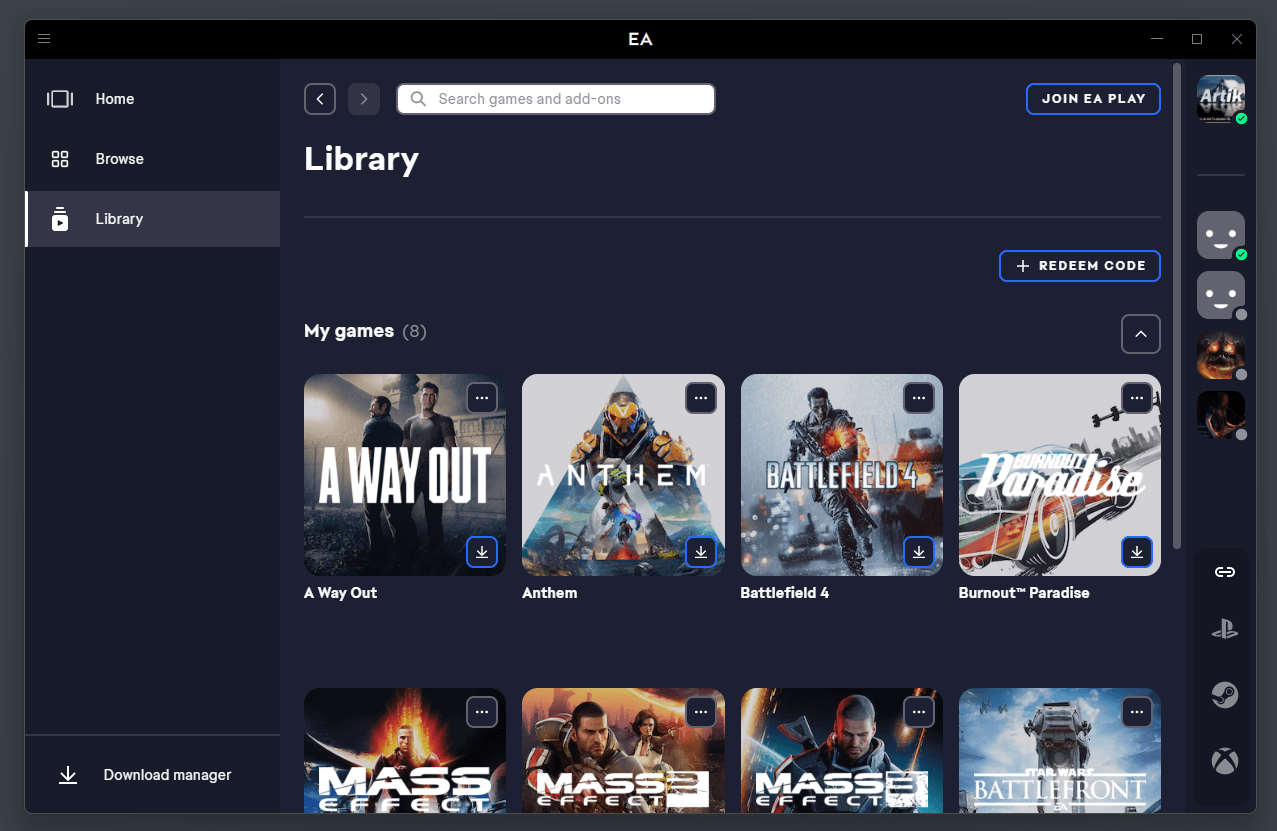
4- Once signed in, click on your library in the left menu.
5- Select "Enter a Product Code..."
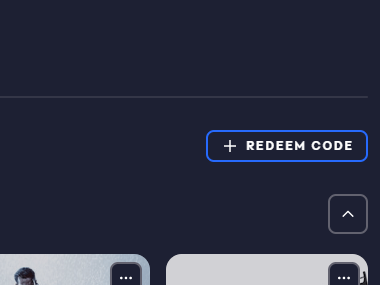
6- A window prompts you to enter your code purchased on Amazing.tn.
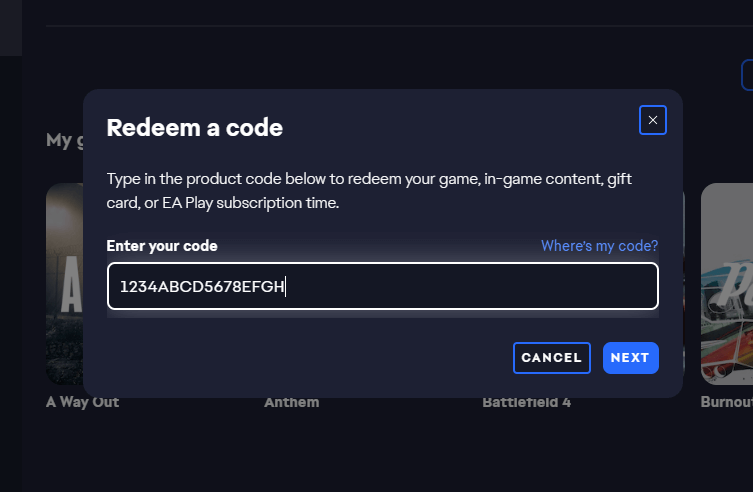
7- After a few minutes EA authenticates your code.
8- The game is now visible in your list.
9- Click on it for the download to begin.
2- Click on "Download EA App":
3- Once the software is installed and launched, sign in with your login/password (create one otherwise).
4- Once signed in, click on your library in the left menu.
5- Select "Enter a Product Code..."
6- A window prompts you to enter your code purchased on Amazing.tn.
7- After a few minutes EA authenticates your code.
8- The game is now visible in your list.
9- Click on it for the download to begin.
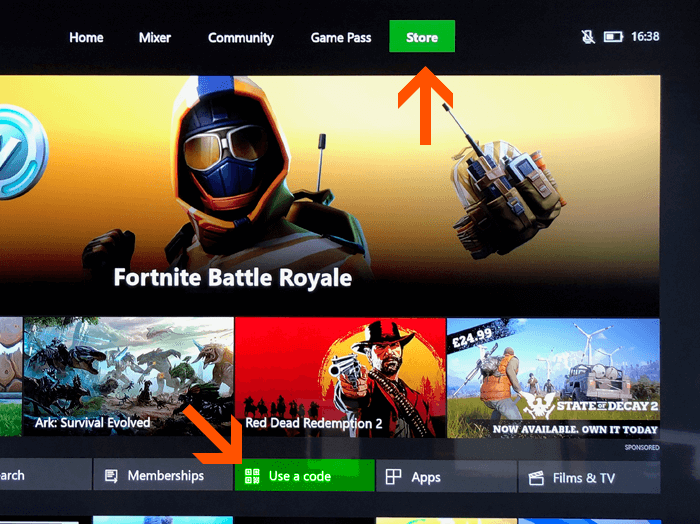
1- Once your console has started, select the "Store" tab then "Redeem code".
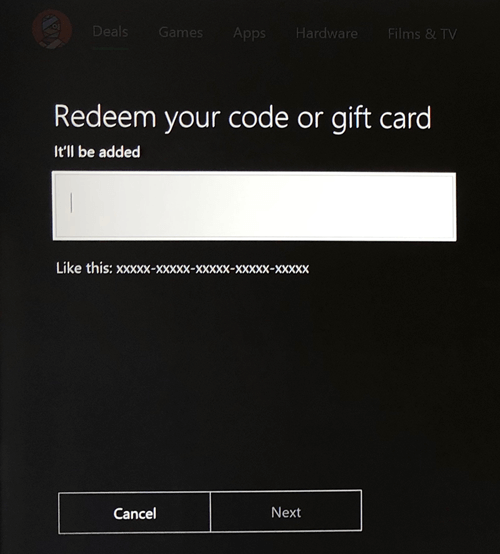
2- Enter the code provided by Amazing.tn in your "My purchases" section, then confirm.
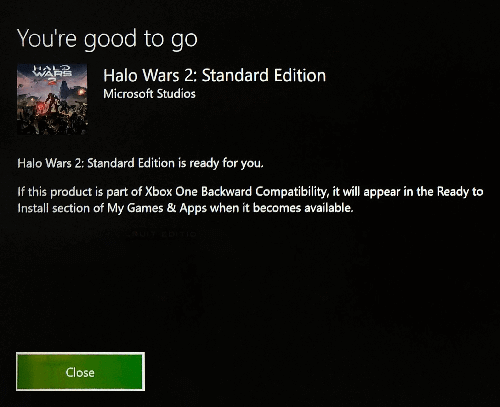
3- Once the game is activated, Microsoft tells us the game is validated. You can close the window.
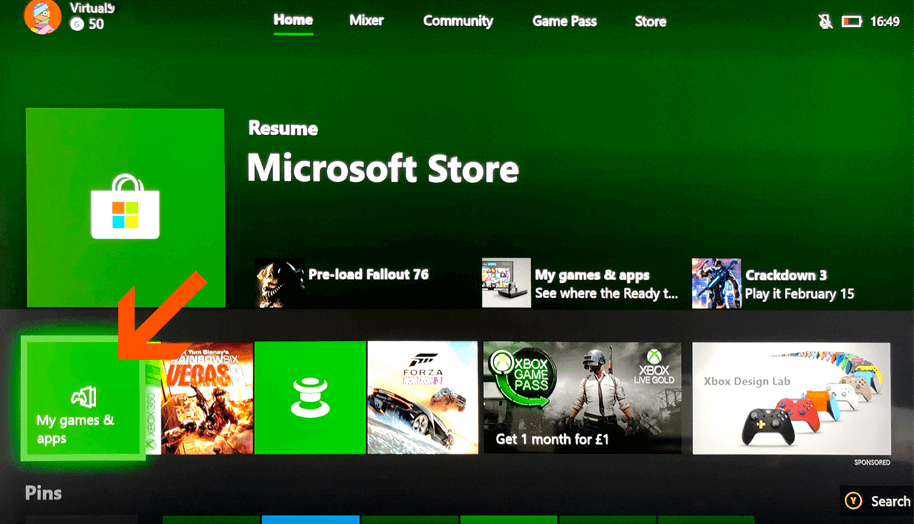
4- Go back to the main menu and select the "My games and apps" tab.
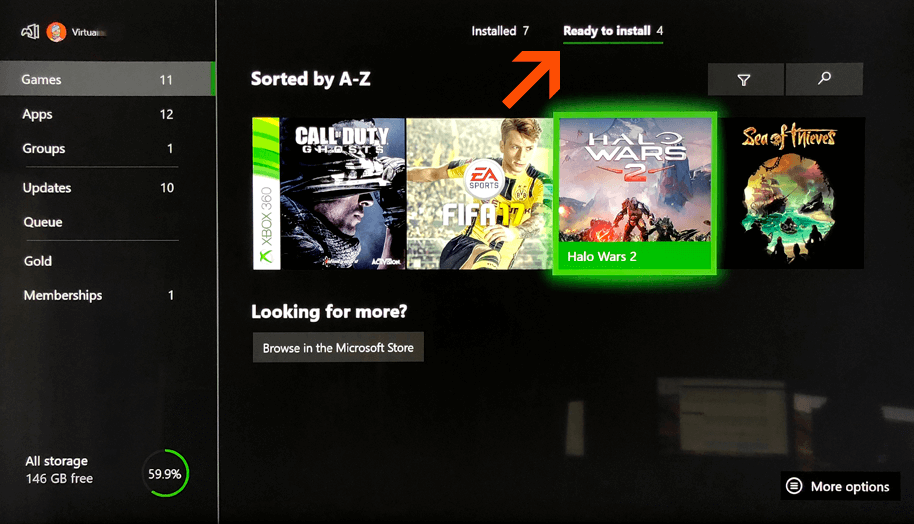
5- Select the "Ready to install" tab, and install your game.
2- Enter the code provided by Amazing.tn in your "My purchases" section, then confirm.
3- Once the game is activated, Microsoft tells us the game is validated. You can close the window.
4- Go back to the main menu and select the "My games and apps" tab.
5- Select the "Ready to install" tab, and install your game.
1- Sign in to your PSN account or create a new one. You can create an account from your PS4 or online.
2- Select the PlayStation Store icon from the Main Menu.
3- On the PlayStation Store, at the bottom of the menu, select Redeem Code.
4- Enter the code.
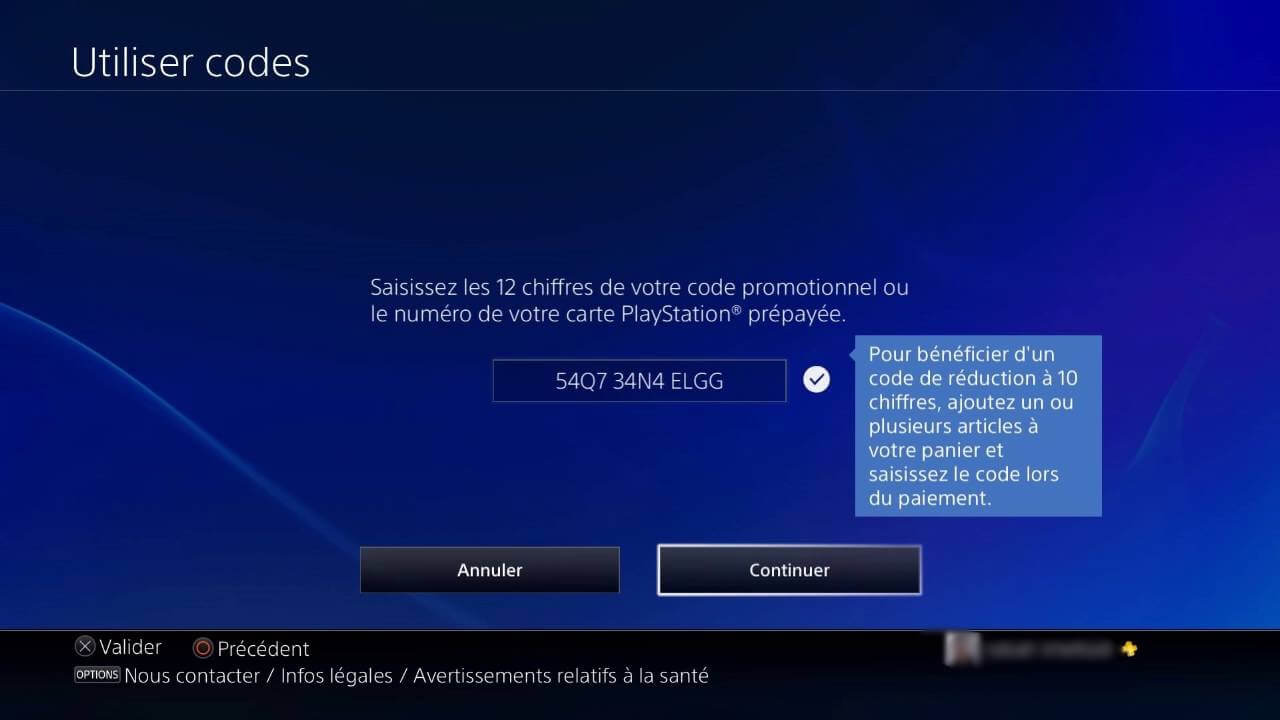
5- Once the code has been entered correctly, select Continue in the dialog box.
6- If you want to start downloading the content, select Download.
2- Select the PlayStation Store icon from the Main Menu.
3- On the PlayStation Store, at the bottom of the menu, select Redeem Code.
4- Enter the code.
5- Once the code has been entered correctly, select Continue in the dialog box.
6- If you want to start downloading the content, select Download.
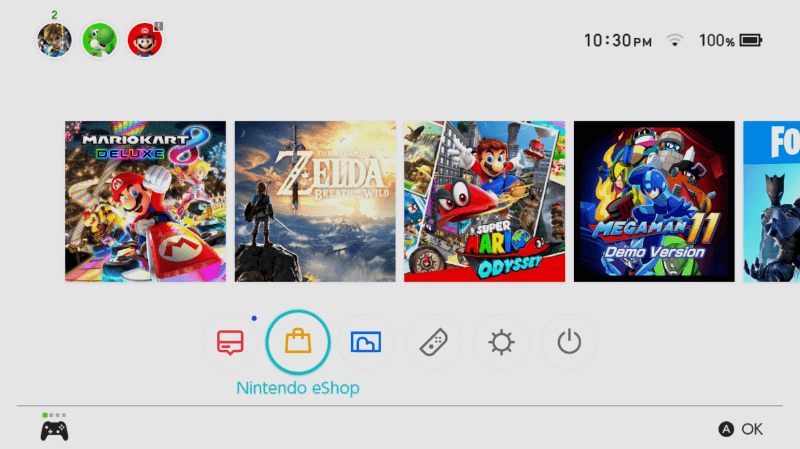
1- Select "Nintendo eShop" on your Switch home screen.
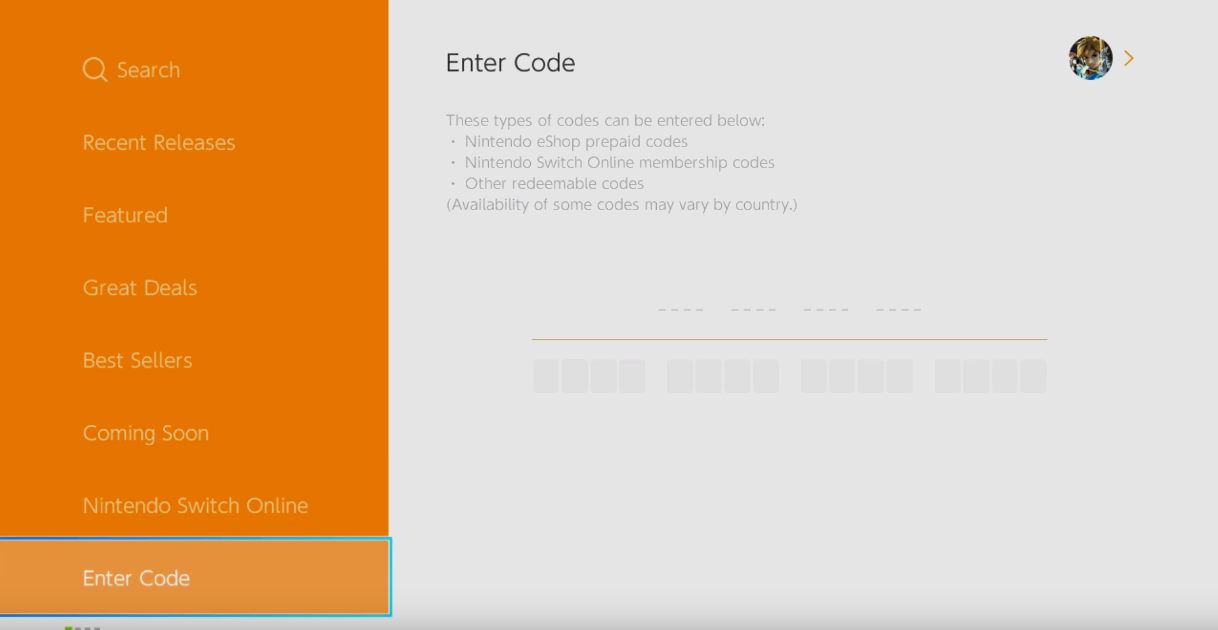
2- Select "Enter Code" at the bottom of the left menu.
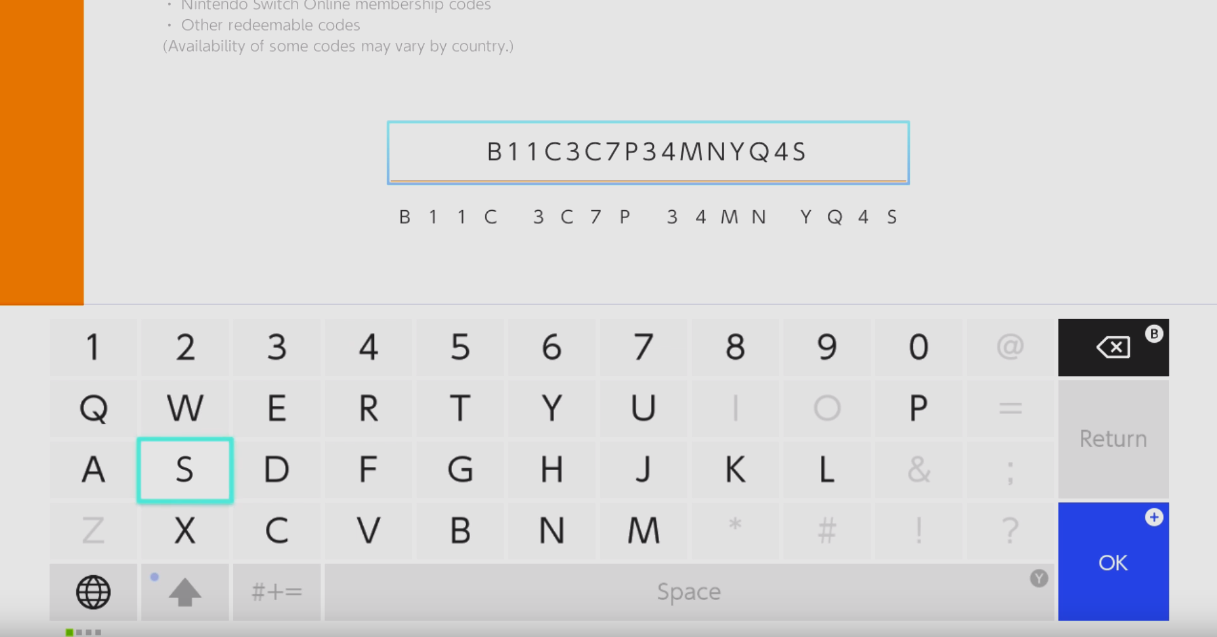
3- Enter the 16 characters of the code found in your "My purchases" section.
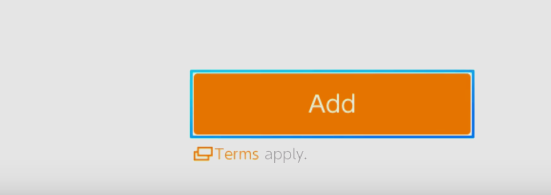
4- Confirm with "OK". The download starts once the code is added.
2- Select "Enter Code" at the bottom of the left menu.
3- Enter the 16 characters of the code found in your "My purchases" section.
4- Confirm with "OK". The download starts once the code is added.